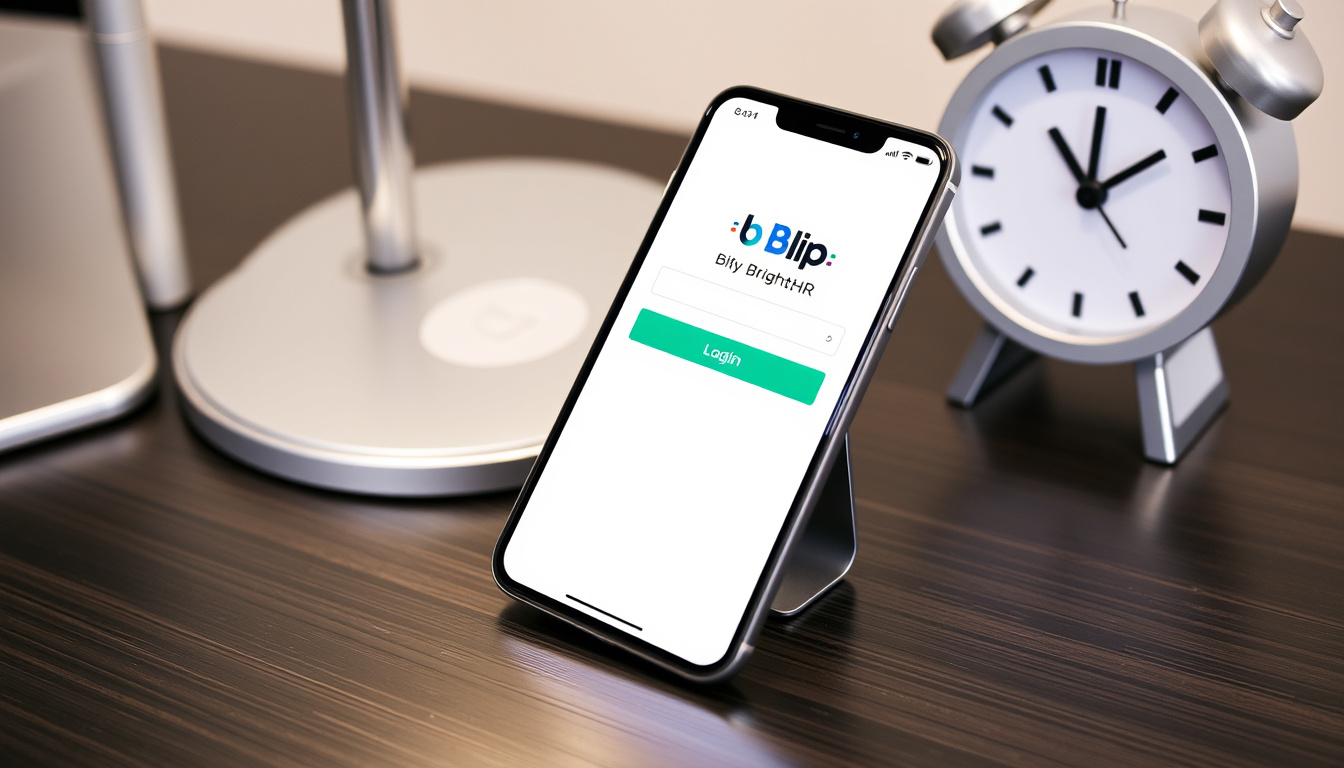
If you run a small or medium business and your team is already on BrightHR, you’ve probably wished for a faster way to track who’s actually working — without digging through spreadsheets. A dedicated clocking app can turn that wish into a tap on a phone. This guide walks through exactly how to download, log in, and use Blip by BrightHR, covering the features that matter most for busy teams. You’ll get the practical steps and a clear picture of what this free tool can — and can’t — do for your daily operations.
App Name: Blip by BrightHR ·
Cost: Free for BrightHR subscribers ·
Core Features: Clock in/out, break tracking, overtime, geolocation ·
Supported Platforms: iOS, Android, Web
Quick snapshot
- Blip is a free app for BrightHR customers (BrightHR official product page)
- Available on iOS and Android (Apple App Store official listing)
- Tracks hours, breaks, overtime, and location (BrightHR admin guide)
- Exact pricing for BrightHR subscription (varies by provider) (BrightHR product page)
- Whether Blip works offline for attendance recording (BrightHR admin guide)
- BrightHR introduced Blip on 2020-08-13 (BrightHR blog announcement)
- Download the app and log in with your BrightHR credentials (BrightHR product page)
The table below captures the essential specifications of Blip by BrightHR, showing how it fits into a small business workflow.
| Field | Value |
|---|---|
| App Name | Blip by BrightHR |
| Developer | BrightHR |
| Cost | Free for BrightHR subscribers |
| Platforms | iOS, Android, Web |
| Core Function | Employee time tracking with clock in/out, breaks, overtime, geolocation |
| Release Date | 2020-08-13 (BrightHR blog) |
| Login Method | BrightHR account credentials (BrightHR product page) |
The pattern: Blip is a lightweight add-on that depends entirely on the BrightHR subscription, not a standalone tool.
How do I download the Blip by BrightHR app?
Downloading from Google Play
- Open the Google Play Store on your Android device.
- Search for “Blip by BrightHR” — the developer listed is BrightHR Limited (Google Play official listing).
- Tap “Install.” The app is free for BrightHR customers (BrightHR official product page).
- Once installed, open the app and log in with your BrightHR email and password.
Downloading from the App Store
- Open the Apple App Store on your iPhone or iPad.
- Search for “Blip by BrightHR” — the app tracks work hours and locations on the go (Apple App Store official listing).
- Tap “Get” to download. The app is free for BrightHR subscribers.
- Open the app after installation and log in with your BrightHR credentials.
System requirements
Blip requires an internet connection for the initial setup and ongoing sync (BrightHR admin guide). The app runs on iOS (iPhone/iPad), Android smartphones, and any modern web browser (Chrome, Firefox, Safari) for desktop clocking (BrightHR product page).
How do I log in to BrightHR Blip?
Login via mobile app
- Open the Blip app on your phone.
- Enter your BrightHR email address and password (BrightHR product page).
- Tap “Log in.” If you’re already registered, you can start clocking immediately (BrightHR admin guide).
- Single sign-on is available for existing BrightHR users — no separate account needed.
Login via web browser
- Go to the BrightHR website and log in with your usual credentials.
- If the admin has enabled it, staff can clock in and out from a desktop or laptop browser (BrightHR employee guide).
- The same credentials work across both mobile and web versions.
Forgotten password steps
- On the login screen, tap “Forgot password.”
- Enter the email address associated with your BrightHR account.
- Check your inbox for a password reset link. If it doesn’t arrive, contact BrightHR support at support@brighthr.com (Google Play support contact).
How do I use Blip by BrightHR?
Clocking in and out
- Open the Blip app and tap the “Clock In” button — it’s a one-tap action (BrightHR employee guide).
- Blip supports three clock-in methods: location-based, QR code scan, or a flexible manual method (BrightHR employee guide).
- Geofencing can automatically register employees when they enter or leave the workplace (BrightHR product page).
- QR codes can be printed and placed at workstations — scanning them clocks you in or out (BrightHR blog).
- Real-time updates show whether you’re clocked in, out, or on a break (BrightHR admin guide).
Tracking breaks and overtime
- Blip automatically records breaks and overtime alongside regular hours (BrightHR admin guide).
- Admins can set up break rules and overtime policies within BrightHR — Blip follows those rules.
- The dashboard displays a running tally of hours worked, break time taken, and any overtime accrued.
Viewing hours worked
- Open the app dashboard to see your current shift duration, break status, and total hours for the pay period (BrightHR product page).
- Attendance data can be exported as a spreadsheet directly from your phone (BrightHR admin guide).
- Admins can view a live feed of which employees are on the clock, on break, or off shift.
How do I clock in with Blip?
Clocking in on mobile
- Tap the “Clock In” button on the app’s home screen. The action takes less than a second (BrightHR employee guide).
- Geolocation records where you clocked in, ensuring accurate location data (Apple App Store official listing).
- The clock-in syncs immediately with BrightHR, so admins see it in real time.
Clocking in on desktop
- If your admin has enabled it, log in to BrightHR via a web browser on your work computer (BrightHR employee guide).
- Use the clock-in button on the dashboard. This is useful for staff without smartphones.
- Desktop clocking uses the same rules as the mobile app (geofence, QR, or manual).
Using the Blip widget
- On Android, add the Blip widget to your home screen for one-tap clocking without opening the app.
- On iOS, the app supports quick actions via 3D Touch or long-press on the app icon.
- The widget shows your current clock status and allows quick clock in/out.
Blip’s mobile app handles clocking in about one second — useful for shift workers who need to start their day fast. The geofence feature means no one forgets to clock in when they walk through the door. Desktop clocking covers staff without a smartphone, which is a practical safety net for mixed-device teams.
What is the Bright HR app?
Relationship between BrightHR and Blip
- BrightHR is a comprehensive HR software platform designed for small and medium businesses (BrightHR product page).
- Blip is a dedicated clocking module within BrightHR — it’s not a standalone HR tool.
- Blip fully integrates into BrightHR, enabling staff without smartphones to clock in from work computers (BrightHR product page).
Key features of BrightHR
- HR advice line for employment law queries.
- Staff wellbeing and absence management tools.
- Document storage and holiday booking.
- Blip adds time tracking to this ecosystem.
Who benefits from BrightHR
- Small and medium businesses (5-250 employees) that need HR support without a dedicated in-house team.
- Companies that already use BrightHR for HR admin and need a simple clocking solution.
- Organizations with shift workers or hourly employees who need accurate attendance records.
Blip is free only for BrightHR subscribers. If you’re evaluating time tracking apps independently, Blip’s cost-effectiveness is tied to a monthly BrightHR subscription. The core clocking feature is simple, but it’s designed to lock you into the BrightHR ecosystem for HR and payroll. The pattern: Blip is a retention tool, not a standalone solution.
Specifications
Six key details define Blip’s practical capabilities as a clocking app, one pattern: it’s a lightweight, feature-focused tool that does time tracking well without unnecessary complexity.
| Specification | Details |
|---|---|
| Price | Free for BrightHR subscribers (BrightHR product page) |
| Platforms | iOS 11+, Android 5+, Web browser (Apple App Store official listing) |
| Clock-in methods | Location, QR code, flexible manual (BrightHR employee guide) |
| Geofencing | Yes, automatic when entering/leaving workplace (BrightHR product page) |
| Break tracking | Yes, automatic with configurable rules (BrightHR admin guide) |
| Overtime tracking | Yes, automatic (BrightHR admin guide) |
| Data export | Spreadsheet from phone or web (BrightHR admin guide) |
| Real-time dashboard | Yes, shows clocked in/out/break status (BrightHR admin guide) |
| Setup time | Reportedly a few minutes (BrightHR product page) |
| Offline support | Unclear from official documentation |
The implication: Blip covers the essentials for time tracking but leaves offline capability as a gap that may matter for field workers or sites with spotty connectivity.
Steps to get started
- Log in to your BrightHR admin account.
- Set up locations — at least one is required before staff can clock in (BrightHR admin guide).
- Enable geofencing or generate QR codes for each location (BrightHR blog).
- Instruct staff to download the Blip app from their app store (BrightHR admin guide).
- Staff log in using their BrightHR email and password (BrightHR product page).
- They can start clocking in immediately — no training needed for basic use (BrightHR employee guide).
- Admins can monitor attendance in real time via the BrightHR dashboard.
- Export attendance data as a spreadsheet when needed (BrightHR admin guide).
Setting up Blip takes about 15 minutes for an admin — mostly defining locations and geofences. The upside: once it’s set, employees use it with zero training. The downside: it’s BrightHR ecosystem-dependent, so switching to a different HR platform means losing Blip.
BrightHR states that Blip can be set up and onboarded in just a few minutes (BrightHR product page). The implication: your team can go from zero to clocking in within a single shift, provided the admin has configured locations beforehand.
Quotes from BrightHR and app stores
“Blip is a free clocking-in and out app that can be used by BrightHR customers to keep accurate records of hours, breaks, and overtime for any work routine.”
— BrightHR, official product page (BrightHR official site)
“Employees can scan a QR code when they arrive and leave work. Each scan registers them as clocked in or out.”
— Apple App Store, official Blip listing (Apple App Store official listing)
“Keep accurate records of hours, breaks, and overtime for any work routine.”
— Google Play, official Blip description (Google Play official listing)
What these quotes share: Blip is presented as a straightforward, no-frills tool for time tracking. The emphasis on “free for BrightHR customers” suggests BrightHR’s strategy is to lock users into their ecosystem through an inexpensive add-on that solves a specific pain point — manual time tracking.
Related reading: Introducing Blip by BrightHR · Blip clocking-in app
apps.apple.com, blip-by-brighthr.en.aptoide.com, brighthr.com, brighthr.com, brighthr.com, blip-guides.netlify.app, brighthr.com
Frequently asked questions
Does Blip track breaks and overtime?
Yes, Blip automatically records breaks and overtime alongside regular hours (BrightHR admin guide). Admins can configure break rules and overtime policies within BrightHR.
Can I view employee working hours in Blip?
Yes. The app dashboard displays current shift duration, break status, and total hours for the pay period (BrightHR product page). Admins can also export attendance data as a spreadsheet from their phone.
How does Blip use geolocation?
Blip uses geolocation to record where employees clock in and out. It can also automatically register employees when they enter or leave a geofence around the workplace (BrightHR product page).
Is Blip available for non-BrightHR users?
No. Blip is a free app for BrightHR customers only (BrightHR product page). You need a BrightHR subscription to access it.
Can clock in and out be done on desktop?
Yes, if the admin has enabled it, staff can clock in and out from a desktop or laptop browser using the BrightHR website (BrightHR employee guide).
How do I reset my Blip password?
On the login screen, tap “Forgot password” and enter your BrightHR email address. If the reset link doesn’t arrive, contact BrightHR support at support@brighthr.com (Google Play support contact).
Does Blip integrate with payroll software?
BrightHR offers payroll integration as part of its ecosystem. Blip’s attendance data can be exported as a spreadsheet, which can then be imported into payroll systems. Native payroll sync depends on your BrightHR plan.
What internet connection is required for Blip?
Blip requires an internet connection for initial setup and ongoing sync (BrightHR admin guide). Offline attendance recording is unclear from official documentation.
Blip by BrightHR solves a specific problem for small and medium businesses: replacing manual time tracking with a tap or a scan. For teams already using BrightHR for HR admin, it’s a logical, cost-free add-on. For businesses evaluating time tracking independently, the real cost is the BrightHR subscription it requires. The pattern is clear: Blip is a tool designed to make an existing ecosystem stickier, not a standalone solution. For the small business owner already invested in BrightHR, the choice is straightforward — download Blip today and eliminate manual timesheets. For anyone else, the first question should be whether BrightHR fits your broader HR needs.